Best Laptop, MacBook and iPad Accessories for College Students
By second year, most students have a drawer. In it: two hubs, four cables, an adapter nobody can identify, and a dock that was supposed to run a second monitor and never did.
Here’s the thing worth understanding before you buy anything. Almost none of that was wasted on bad products. It was wasted on products that were never going to do the job the buyer had in mind. The dock worked perfectly. The laptop simply couldn’t drive two screens. The cable was fine. It just wasn’t rated for the wattage.
So this guide runs backwards from the usual one. Three compatibility checks first, then the picks for each device. Skip to your section if you like: laptop accessories, MacBook accessories, iPad accessories. But the three checks are the part that saves you money, and they take about a minute.

Before you buy anything: three compatibility checks
Three things decide whether an accessory will do what you expect: how many displays your device actually supports, what your charger and cable can deliver together, and whether your device can extend to a monitor or only mirror it.
1. Displays
This is the one that catches almost everyone. Apple’s documentation makes the key point clear: using a standard hub or daisy-chaining displays does not increase the maximum number of displays a Mac supports natively. A MacBook Air with an M1 or M2 chip supports one external display. M3 models can support two external displays with the lid closed, while M4 and M5 models support two external displays with the lid open.
It doesn’t matter how many HDMI ports the dock advertises if the Mac itself supports fewer displays. Check your exact model first, then read the guide to connecting dual monitors to a MacBook Air or MacBook Pro before choosing a dock.
2. Power
Match the charger to the machine. MacBook Air adapter requirements vary by model and configuration. The 2026 M5 MacBook Air includes a 40 W Dynamic Power Adapter with 60 W Max and supports fast charging with a 70 W or higher USB PD power source. Current 14-inch MacBook Pro configurations may use 70 W or 96 W, while 16-inch models may use 140 W.
Then the bit nearly everyone skips.
A USB-C cable rated for 60 W can limit a higher-powered charger to 60 W. Charging above 60 W requires a suitable 5 A electronically marked cable. Plug a 100 W charger into a cable limited to 60 W, and the cable becomes the bottleneck.
3. What your device does with a screen
Only supported iPad Air and iPad Pro models can extend apps and windows to an external display. Other models may be limited to screen mirroring or video output, so check the exact model and iPadOS version before choosing a hub.
Run those three checks, and you’ll avoid several common compatibility mistakes. They’re worth checking before you rely on any review score.

Image from unsplash
General laptop accessories
For any USB-C laptop, the accessories worth buying are a dock or hub, a charger matched to the machine, a USB-C cable that doesn’t throttle it, a stand, and a power bank big enough to actually charge it. That’s the whole list.
The dock
The UGREEN Revodok USB-C Hub (9-Port, 10Gbps, 4K@60Hz, 100W) is the single accessory that does the most work.
One USB-C cable and your laptop becomes a desk: HDMI at 4K 60Hz for a monitor, Gigabit Ethernet for when Wi-Fi gives up during deadline week, an SD and microSD reader for camera and project files, and two USB-C plus two USB-A ports for a keyboard, mouse and drive.
It supports up to 100 W USB-C pass-through charging, which means power from your wall charger travels through the hub into the laptop, so one cable can handle data and charging together. The power ultimately delivered to the laptop depends on the charger, hub overhead and the connected device.
For a wider comparison, see the guide to the best docking station for MacBook Air and MacBook Pro.
The desk charger
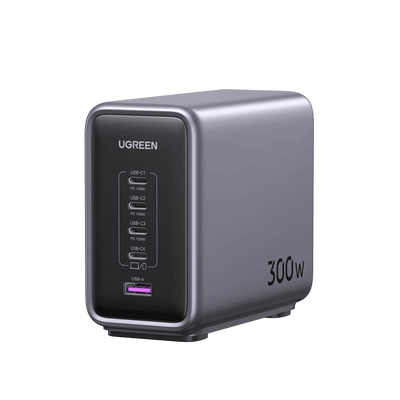
For a desk setup running a laptop, a phone, a tablet, headphones and whatever else, the UGREEN Nexode 300W 5-Port Desktop Charger turns one socket into five.
It provides four USB-C ports and one USB-A port, with up to 140 W available from the first USB-C port. When several devices are connected, the remaining output is distributed across the other active ports.
Being straight with you: this is more charger than most students need. It’s exactly right if you’ve got a heavy-duty setup or a shared room where sockets are contested territory.
The cable
The UGREEN Nexode 100W Charger with Retractable Cable has a 0.75 m USB-C lead that retracts into the body and is rated for the charger’s full output. That quietly kills the 60 W cable problem, and it can’t be left behind in a lecture theatre.
The stand
HSE guidance on display screen equipment is that the top of your screen should sit roughly at eye level, and that a laptop used for any length of time belongs on a stand with a separate keyboard. A folding stand is the cheapest item in this guide and the one you’ll feel the difference from by December.
The power bank
The UGREEN Nexode Laptop Power Bank (25,000mAh, 200W, Built-in USB-C Cable, 4-Port) puts out up to 200 W across four ports, which means it can charge compatible laptops as well as smaller devices.
The 68 cm USB-C cable retracts into the body, a second short cable doubles as a carry strap, and a smart display shows exactly what’s left instead of four LEDs you have to interpret.

MacBook accessories
MacBook accessories come down to matching the right wattage to your model, then adding back the ports Apple took away.
Start with the wattage, using Apple’s current recommendations:
| MacBook | Typical or recommended Apple adapter | What to buy |
|---|---|---|
| MacBook Air | Varies by model and configuration; the 2026 M5 model includes a 40 W adapter with up to 60 W dynamic output | Check the exact model; 65 W suits many everyday setups, while 70 W or higher may be needed for maximum fast charging |
| MacBook Pro 14-inch | 70 W or 96 W, depending on model and configuration | 100 W |
| MacBook Pro 16-inch | 140 W | A charger with a 140 W-capable USB-C port |
For a MacBook Pro: the UGREEN Nexode Pro 100W 3-Port Charger.
With one compatible device connected, up to 100 W is available from the first USB-C port. In UGREEN tests, a compatible 14-inch MacBook Pro reached 50% in 27 minutes under the stated test conditions. When several devices are connected, the output is shared between the active ports.
It’s roughly half the size of a conventional 100 W charger. GaN technology supports efficient power conversion and allows a high-output charger to use a more compact design.
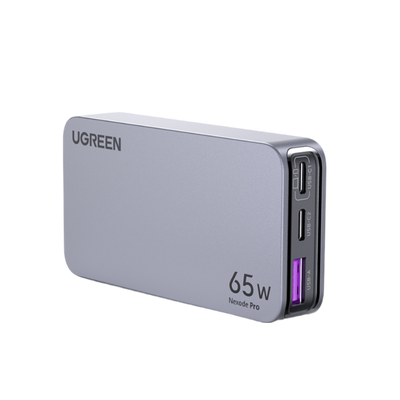
For a MacBook Air: the UGREEN Nexode Pro 65W 3-Port GaN Charger.
At 113 g, it is small enough to live in your bag permanently, rather than being unplugged from the wall every morning and forgotten twice a term.
In UGREEN tests, the first USB-C port charged a compatible MacBook Air M2 from 0% to 51% in 30 minutes under the stated test conditions.
A phone and earbuds can also connect through the other ports, although the total 65 W output is shared when several devices are connected.
The honest note: with three devices connected, the 65 W gets shared, so the laptop takes the biggest slice and nothing runs at absolute top speed.
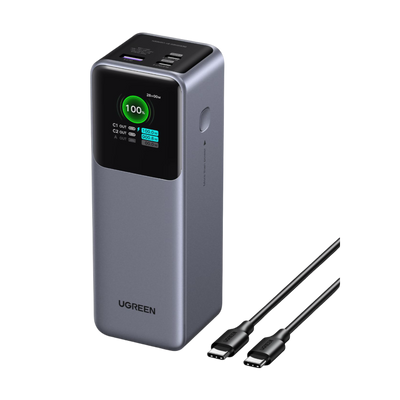
For long days away from a socket: the UGREEN Nexode Power Bank 25000mAh 200W with Smart Digital Display.
Dual 100 W output means it can charge two compatible laptops at once or take a compatible MacBook Pro to 56% in half an hour under the stated test conditions. At 90 Wh, it falls below the general 100 Wh threshold. Power banks must be kept in hand luggage. Under ICAO rules effective from 27 March 2026, passengers are limited to two power banks and must not recharge them during the flight.
Check your airline’s own rules, but it’s designed for travel.
For a Mac desk setup: the UGREEN Mac mini 11-in-1 Docking Station with SSD Expansion.
This one deserves its own paragraph, because it’s aimed at a group that’s growing fast: students whose coursework is genuinely heavy. Video edited for a media degree. Datasets that made a 256GB drive laugh in week three.
Models run locally rather than being billed hourly in the cloud. The dock sits under the Mac mini and adds 11 ports, including USB-A and USB-C at up to 10 Gbps and a UHS-II SD reader running at up to 170 MB/s.
The clever part is inside. An M.2 NVMe slot takes a drive of up to 8 TB, so your storage disappears into the desk instead of dangling off it. Two things to be clear about. It’s built for the Mac mini M4 specifically, and the SSD is bought separately.
One more time on displays, because this is where it bites.
If you’re on an M1 or M2 MacBook Air, a standard dock with two HDMI ports will still give you one external display natively. That limit comes from the Mac rather than the dock, and a standard USB-C or Thunderbolt dock does not increase the Mac’s native display support.
iPad accessories
For an iPad, the accessories that matter are the ones that turn it into a study device: a stand, power that lasts a full timetable, and a monitor connection if, and only if, your iPad supports one.
Start with the compatibility question, because it decides everything else. Only supported iPad Air and iPad Pro models can extend apps and windows to an external display. Compatibility depends on the exact model and iPadOS version.
Other iPad models may be limited to screen mirroring or video output. Check your exact model before you buy anything with an HDMI port, because almost no accessory guides will tell you this.
The stand. The iPad’s whole case as a study device rests on two things: handwriting notes with a stylus, and reading PDFs so you don’t have to print them. Both want an angle, and a flat desk gives you neither.
A stand fixes that, and it fixes the video-call camera angle at the same time, which otherwise points straight up at your nose.
The charger. An iPad doesn’t need 65 W to itself, which is precisely why a three-port charger makes sense here. The UGREEN Nexode Pro 65W 3-Port GaN Charger runs the iPad, your phone and your earbuds from one socket, in something weighing just 113 g.
One plug, three devices, no adapter juggling in a cafe or library.
The power bank. The UGREEN MagFlow Air Magnetic Power Bank (10000mAh, Qi2 15W) charges at Qi2 15 W and snaps magnetically to the back of a compatible phone or magnetic case, and at 13.9 mm thin, it doesn’t turn anything into a brick.
There’s a USB-C cable built in, which is what makes it useful for an iPad through a long day of lectures. The best power bank is always the one you’ll actually carry, and thinness is what decides that.
The cable. One properly rated USB-C cable does more for an iPad setup than an accessory costing three times as much. For a wider setup, see the guide to building a minimal charging kit.
And if your iPad supports an extended external display, the UGREEN Revodok USB-C Hub (9-Port, 10Gbps, 4K@60Hz, 100W) adds HDMI at 4K 60Hz plus USB ports for accessories such as a keyboard and mouse. Those accessories make the setup easier to use, but they do not determine whether the iPad can extend to the monitor.
The accessories most students don’t need
A few laptop accessories get bought every September and used twice. Here’s the short, opinionated list.
- A second hub bought before checking why the first one failed. The problem may be the laptop’s display support, cable, power supply or port compatibility rather than the hub itself.
- A laptop cooling pad bought without checking the cause of the heat or throttling. Airflow design, workload, blocked vents and the manufacturer’s performance settings should be checked first.
- A drawer of cheap cables instead of one good one. You already know how that ends, because you’ve seen the drawer.
- And a dock bought before checking what the device actually supports. Which brings us neatly back to the top of the article.

Image from unsplash
The wrap-up
The best laptop, MacBook and iPad accessories are the ones that pass the compatibility check first and the review score second. Displays, power, and what your device can actually do with a screen. Get those three right, and everything you buy will do what you bought it for.
If you’re starting from scratch, two things cover most people. The UGREEN Revodok USB-C Hub (9-Port, 10Gbps, 4K@60Hz, 100W) turns a laptop into a proper desk with one cable, and the UGREEN Nexode Pro 65W 3-Port GaN Charger means one plug runs your laptop, phone and earbuds wherever you happen to be sitting.
For the full move-in list, see the ultimate college packing list. For the wider study kit, there’s the guide to back-to-school tech essentials.
FAQs
What laptop accessories do I need for university?
A dock, a charger matched to the machine, a cable rated for that charger, a stand, and a power bank.
Will a USB-C hub let me connect two monitors to my MacBook Air?
Only if your MacBook Air supports two in the first place. A standard hub does not increase the number of displays a Mac supports natively. M1 and M2 models support one external display, M3 models can support two with the lid closed, and M4 and M5 models support two with the lid open.
What wattage charger do I need for a MacBook?
MacBook Air requirements vary by model; 65 W suits many everyday setups, while some models need 70 W or higher for maximum fast charging. A 100 W charger suits many 14-inch MacBook Pro configurations, while recent 16-inch models may use up to 140 W.
Can I connect my iPad to a monitor?
Supported iPad Air and iPad Pro models can extend apps and windows to a second screen. Other models may be limited to mirroring or video output, so check the exact iPad model and iPadOS version.
Does the USB-C cable really matter?
Yes, more than people expect. A cable rated for 60 W can limit a higher-powered charger to 60 W, so the wrong cable can make a 100 W charger feel much slower than expected.
What’s the one accessory worth buying first?
A dock, if you work at a desk. A multi-port charger, if you don’t.
Quick Navigation