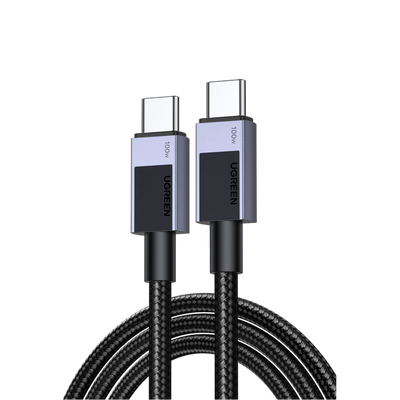
How to Have a Clean Desk Setup: Cable Management Tips That Actually Help You Focus
Count the cables on your desk right now.
Most people who do this for the first time land somewhere between ten and fourteen — two monitor power leads, two signal cables, a laptop charger, keyboard, mouse, webcam, headset, phone charger, maybe a desk lamp and an Ethernet run.
That’s before the power strip on the floor and the tangled mess behind the monitor stand.
Every one of those cables crosses your sightline while you’re trying to work. Your brain, whether you want it to or not, spends a measurable amount of energy processing each one. The fix isn’t buying fifteen cable clips, it’s reducing the number of cables that already exist on your desk.

Quick Takeaways
- Visual clutter competes for your brain’s attention even when you’re trying to ignore it (peer-reviewed neuroscience, not a productivity blog claim)
- A typical laptop desk has 10–14 cables before any consolidation; a docking station reduces roughly eight of those into one
- The highest-impact move isn’t tidying cables, it’s eliminating them at the source
- Under-desk cable trays and Velcro ties handle the cables a dock can’t remove
- A five-minute monthly reset keeps a clean desk from ending up in chaos
Why does a messy desk make it harder to focus?

Your visual cortex treats every object in your sightline as competition for processing power. Cables are particularly bad because they cut across your field of view constantly, and your brain can’t easily dismiss them as background.
Researchers at Princeton’s Neuroscience Institute showed this with fMRI scans back in 2011.
When multiple visual stimuli sit in your field of view at once, they suppress each other’s neural activity. Your brain has to work harder to focus on the thing you’re actually trying to look at.
Sabine Kastner, one of the study’s co-authors, put it plainly: visual clutter competes with your brain’s ability to pay attention and taxes your cognitive functions over time.
That was a lab study using abstract visual displays, not desks. But the workplace research catches up.
A 2020 study in Environment and Behaviour by Roster and Ferrari (the first peer-reviewed paper to look specifically at office clutter) found that physical mess acts as a workplace stressor in its own right, independent of workload or job satisfaction.
Their sample was 290 office workers, and the effect was consistent across roles.
Cables aren’t just clutter. They’re clutter that moves, tangles, and reminds you of the four things you’ll need to unplug when you pack up your laptop at 5 pm.
How many cables does a typical desk actually have?

Most laptop setups land between 10 and 14 individual cables before any tidying, and if you’re a hybrid worker who plugs and unplugs daily, you’ll notice it every single time.
Let’s walk through a standard home office desk.
Two monitors means two power leads and two signal cables (HDMI or DisplayPort). Your laptop charger takes one port. A wired keyboard, a mouse receiver dongle, a webcam, and a headset. That’s four more USB connections.
Phone charger draped across the corner. Desk lamp plugged in behind the monitor. Maybe an Ethernet cable for the days your Wi-Fi decides to misbehave.
And every one of those terminates in a power strip you’ve kicked under the desk and tried to forget about.
That’s 12 cables minimum for a fairly ordinary dual-monitor setup. Some cable management users report 20 or more. ONS data from June 2025 shows 28% of UK workers now work in a hybrid environment, which means millions of people are plugging and unplugging some version of this cable set every single morning.
What’s the single biggest thing you can do to reduce desktop cable clutter?
A USB-C or Thunderbolt docking station turns eight or more individual connections into one cable between the dock and laptop. That single swap does more for desk clutter than any cable clip, Velcro tie, and under-desk tray combined.
Think about what a dock actually replaces.
The two monitor cables? Gone. The dock drives both displays. The laptop charger? The dock delivers power over the same cable. Ethernet, USB ports for your keyboard and mouse, SD card reader, audio out — all routed through the dock and out through one cable to your laptop.
Before a dock, a typical desk has 10–14 cables visible.
After a dock, you’re down to three or four: the dock’s own power cable (hidden behind the desk), the one cable to your laptop, and whatever charges your phone. That’s the 80/20 of cable management. One purchase eliminates roughly 80% of the visual mess.
| Desk clutter problem | Why it happens | Clean-desk solution |
|---|---|---|
| 6–8 cables running to peripherals | Each device needs its own connection | The docking station consolidates to one cable |
| Daily plug/unplug when arriving at desk | Laptop used on the go, reconnected at home | Single dock cable: sit down, plug in, done |
| Charging cables for phone/earbuds/tablet | Multiple devices, multiple chargers | Multi-port GaN charger or dock with PD |
| Cables draped across desk surface | No routing or bundling | Magnetic cable clips hold idle cables at desk edge |
| Power strip visible on floor | Too many bricks, no hiding spot | Mount strip under desk, route cables through tray |
| Cable mess between desk and wall | Multiple runs to the outlet | Under-desk tray catches everything in one channel |
For hybrid workers, the dock changes the daily ritual too. Instead of plugging in four cables every morning (charger, monitor, monitor, Ethernet) and unplugging them at the end of the day, you plug in one. That’s not just tidier, but it removes a small but real source of friction from the start and end of every working day.
UGREEN’s docking station range runs from compact USB-C hubs up to Thunderbolt 5 docks with 17 ports, dual 6K display support, and built-in NVMe storage. For the latest MacBook Pro with M5 Max, the UGREEN Revodok Maxidok 17-in-1 Thunderbolt™ 5 Docking Station can even drive dual 8K@60 Hz displays, so there’s something for most budgets and most desk sizes.
Do you need an expensive dock or will a cheap USB hub work?

A £20 USB-C hub gets you extra ports, but it usually gives you less charging headroom, weaker multi-display support, and less dependable all-day behaviour than a proper dock. If you want one-cable simplicity, a hub probably won’t get you there.
The difference comes down to how each device talks to your laptop.
A USB-C hub shares a single USB-C lane for everything: data, display signal, and (if it offers pass-through charging) power. That shared lane means the hub is constantly juggling bandwidth.
Plug in an external SSD and a 4K monitor at the same time, and you’ll often notice the monitor flickering or the transfer speed dropping. Reddit’s r/UsbCHardware is full of exactly this complaint.
A dock, especially a Thunderbolt dock, has dedicated tunnels for display, data, and power. It doesn’t have to share. That’s why a dock can reliably drive two 4K monitors, charge your laptop at full speed, and run an external SSD without anything stuttering.
Hubs can’t make the same promise because the architecture won’t let them.
Price-wise, docks run roughly £40 for a basic USB-C model up to £350+ for a Thunderbolt 5 dock with all the ports you’d ever need. That’s more than a hub, obviously.
But it’s a one-time purchase that replaces four or five separate accessories (and the four or five cables those accessories would’ve added to your desk).
What about the cables that a dock can’t eliminate?

A dock handles the laptop-to-peripherals tangle, but you’ll still have monitor power leads, a desk lamp cable, and whatever charges your phone. Those need physical routing, not consolidation.
Start with the power strip.
Mount it under the desk with heavy-duty adhesive strips or screws. That single move hides the ugliest part of most desk setups: the strip itself, plus every chunky power brick that plugs into it.
An under-desk cable tray (IKEA’s SIGNUM at around £12 is the long-standing budget favourite) catches all the cables that run between the strip and the back of the desk, keeping them off the floor and out of sight.
For the cables that do need to live on the desk surface, like a phone charger or a secondary USB-C cable for a tablet, magnetic cable clips keep them anchored at the desk edge instead of sliding behind the monitor every time you unplug.
Velcro ties (not zip ties, which you’ll have to cut if you ever need to reroute) bundle any remaining runs behind the desk legs into neat groups.
And then there’s the maintenance step most guides skip. Once a month, spend five minutes unplugging everything, re-routing any cables that have drifted, and re-bundling. It takes less time than making a cup of tea, and it’s the difference between a desk that stays clean and one that slowly returns to chaos.
Does cable management actually improve productivity?
No study has directly measured “tidy cables = more output.” But the neuroscience on visual clutter and attention is solid, and the daily plug/unplug friction that cable mess creates is a cognitive cost — one that doesn’t show up on a timesheet.
The Princeton visual-cortex research applies here in a practical way.
Every cable crossing your sightline is another stimulus competing for your brain’s attention. You learn to ignore it, mostly. But “mostly” is doing work. Your brain is spending energy on the ignoring part, and that energy isn’t free.
Sophie Leroy’s 2009 research on attention residue adds another layer.
When you switch between tasks (even tiny ones like plugging in four cables), a portion of your attention stays stuck on the previous task. That residue makes the next task harder to start. So the morning plug-in ritual isn’t just five minutes of fiddling. It’s five minutes of fiddling followed by a few more minutes of your brain catching up.
There’s a counter-argument worth mentioning.
A 2013 University of Minnesota study by Vohs, Redden and Rahinel suggested messy environments can boost creative thinking. But a 2019 replication attempt by Chae and Zhu failed to reproduce the result, which puts a question mark next to the original finding.
The practical framing is probably the most useful one. A clean desk isn’t about aesthetics or Instagram setups. It’s about removing small decisions and distractions from the start of your working day. One cable, one plug, and you’re working.
That’s what a dock-centred setup gives you.
FAQ: Clean Desk Setup and Cable Management Tips
How can I make my desk setup look cleaner?
The most effective way to create a clean desk setup is to reduce the number of cables on the desk, not just hide them. A docking station can replace multiple monitor, charging, Ethernet, and peripheral connections with one cable to your laptop, which removes most visible cable clutter at the source.
Does cable management actually help you focus?
Yes. Research on visual clutter shows that extra objects in your sightline compete for your brain’s attention. A messy desk with visible cables can make it harder to focus, while a cleaner desk setup reduces distractions and lowers daily friction when you start work.
Is a docking station better than a cheap USB-C hub for cable management?
Usually, yes. A cheap USB-C hub can add ports, but a proper docking station is better for one-cable desk setups because it can handle charging, displays, data, and peripherals more reliably. That makes it a better long-term solution for a clean desk setup, especially with dual monitors.
What cable management tools do you still need after using a dock?
Even with a dock, you may still need a few cable management accessories for monitor power cables, desk lamp cords, and phone chargers. Useful options include an under-desk cable tray, Velcro ties, magnetic cable clips, and an under-desk mounted power strip.
What is the easiest way to keep a desk setup tidy over time?
A quick monthly reset is one of the easiest ways to keep a desk tidy. Spend a few minutes unplugging devices, re-routing cables that have moved, and re-bundling loose wires. This helps maintain a clean desk setup instead of letting cable clutter slowly build up again.