


Filters
Sort By: Featured
-
 23% OFF
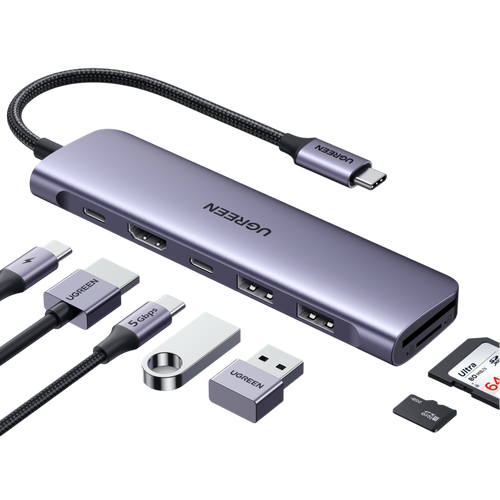

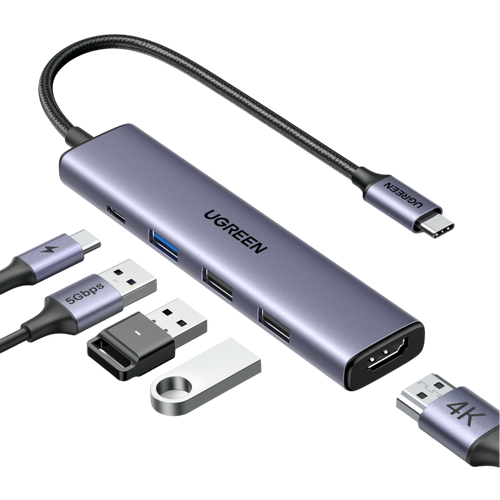
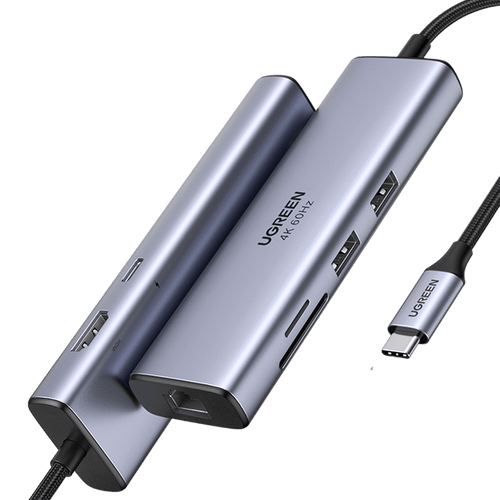
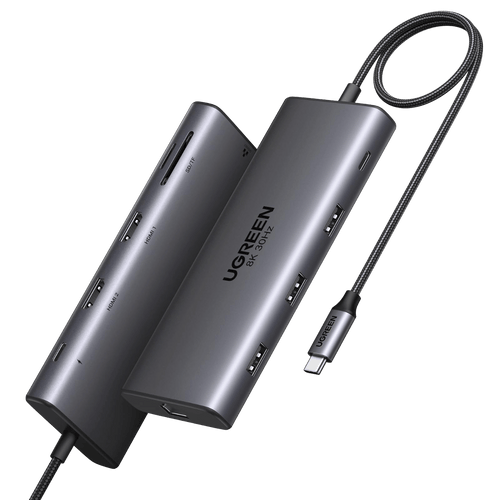
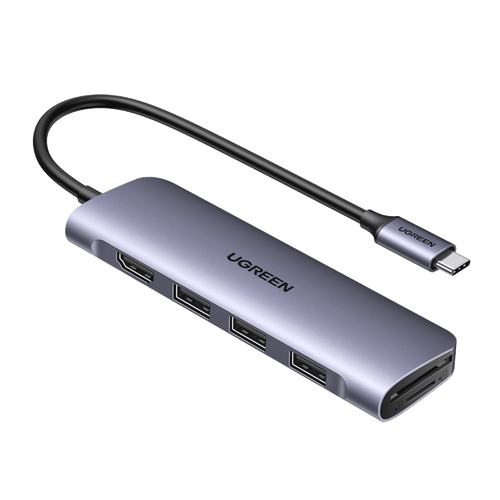
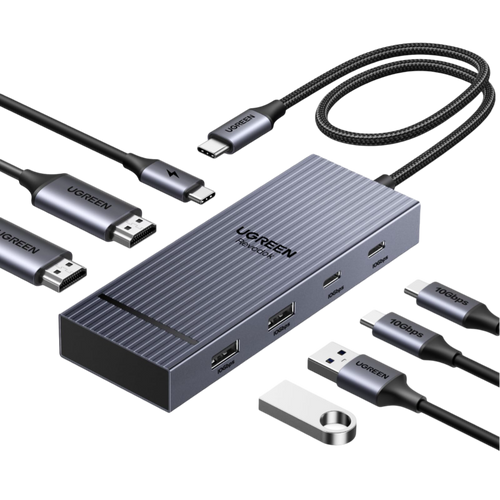
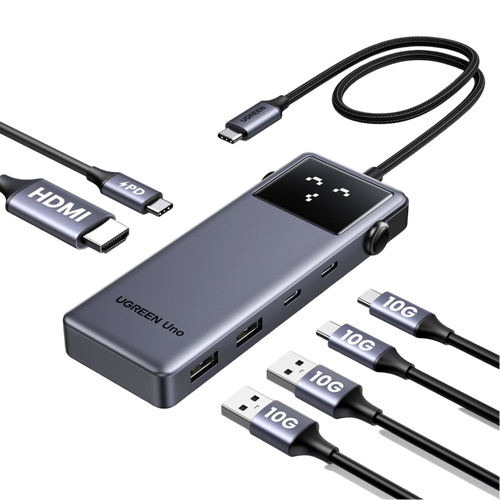
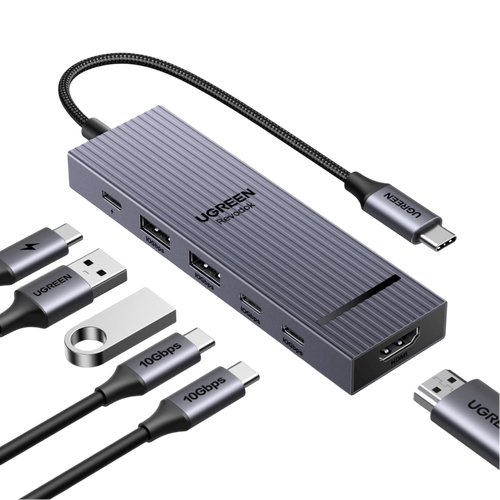
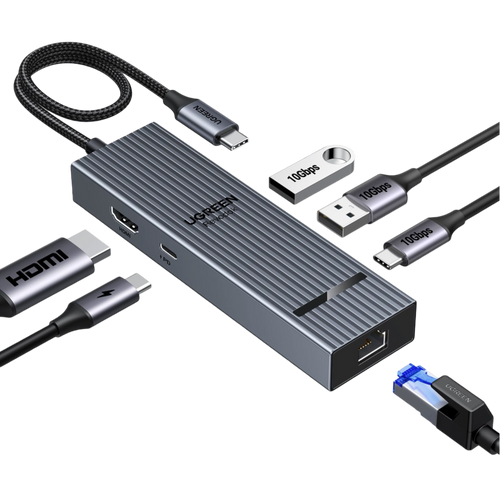
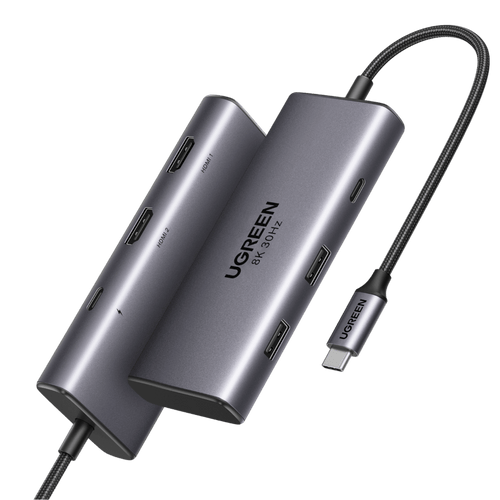
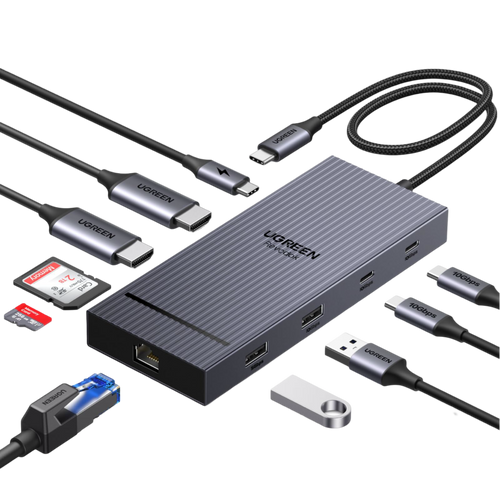
Expand Your Workspace. Simplify Your Life.
Frequently Asked Questions About Docks & Hubs
A USB-C hub typically provides convenient extra ports for a laptop, while a docking station is often designed for a more permanent, multi-device workspace. However, the categories overlap: some hubs include HDMI, Ethernet and laptop charging, and some docks are compact. Compare the ports, display support, power supply and bandwidth of each model rather than relying on its name. A portable hub may be sufficient for everyday connections, whereas a dock can better suit a complex desk setup. Our dock versus hub comparison explores these differences.
Start with your exact laptop model and its USB-C, USB4 or Thunderbolt capabilities. A USB-C-shaped port does not necessarily support video output, charging or the same data speeds as another port. List the devices you need to connect, including displays, storage, keyboards and wired networking, then check each product's port specifications. On a MacBook, external display support also depends on the chip and model; Windows laptops have their own limits. If you only need one extra connection, browse our adapters before choosing a larger dock or hub.
Some models can, but having two HDMI or DisplayPort connectors does not guarantee two independent extended displays. Check your laptop's supported number of external monitors, the hub or dock's display modes, and the required resolution and refresh rate. Windows and macOS handle certain multi-display technologies differently; for example, macOS generally does not support DisplayPort MST for extending across separate monitors. Some setups may require a compatible Thunderbolt connection or additional display technology. Our MacBook dual-monitor guide explains why the exact computer model matters.
Many docking stations support USB-C Power Delivery, but not every USB-C socket can charge a laptop. Check the dock's host-facing charging output and compare it with your computer's power requirements. Some compact hubs offer PD pass-through instead, which requires a separate compatible charger and may reserve some power for the hub itself. The wattage advertised for an input is therefore not always the amount delivered to the laptop. Use an appropriately rated USB-C to USB-C cable and confirm whether the power adapter is included before buying.
A USB-C hub may be enough if you mainly need extra USB ports, one compatible monitor or occasional file transfers. Consider a Thunderbolt dock if your laptop supports it and your workspace uses several high-resolution displays, fast external storage or other bandwidth-intensive accessories. USB4 can also be worth comparing, depending on the host and product specifications. A Thunderbolt label alone does not guarantee every display configuration or charging speed. Browse our Thunderbolt 4 and Thunderbolt 5 docks and check the supported features against your laptop and peripherals.
Choose ports according to your actual setup: USB-A for older peripherals, USB-C for compatible accessories, HDMI or DisplayPort for screens, and SD slots for memory cards. For external SSDs, compare the stated USB data speed with the drive's capabilities; a 10Gbps port cannot exceed the limits of the host connection. Also check the dock's Ethernet speed if you prefer a wired network and match it with suitable Ethernet cables. Confirm individual port specifications because a higher total port count does not guarantee faster transfers or additional displays.
It can. Several devices may share the bandwidth of one connection to your laptop, so simultaneous transfers from external drives could be slower than using a single drive. External displays may also use part of the available connection bandwidth. Bus-powered hubs draw power from the computer, while externally powered docks can provide a separate power budget, but neither offers unlimited resources. Check upstream connection speed, each port's capabilities and total power availability. For demanding setups, prioritise the devices you use together rather than simply choosing the hub with the most ports.
First, reconnect the dock or hub and check its power supply, cable and host connection. For a missing monitor, confirm that the laptop's USB-C port supports video output and that the display resolution and number of screens are supported. For a missing USB device, try connecting it directly to the computer to isolate the problem. Check operating system settings and install any manufacturer-recommended firmware or drivers where applicable. If the issue continues, consult our docking station troubleshooting guide or the specific product's support instructions.